Chiron turns your phone, tablet or laptop into a race timer. Open Race Timing on the event, start the race at the gun, and tap each runner as they finish.
When you open Race Timing, the event and its start list are downloaded to your device. Timing works offline — nothing you record leaves the device until you publish results, so a patchy signal at the finish line doesn’t matter.
Before race day
- Build your start list so each runner has a timer button.
- Set the event’s Status to Draft, Registration Open or Registration Closed. A race can’t be started while its status is Paused, which is the status new events start with.
- If the start list changes after you first open Race Timing, tap the refresh option on the timing screen before you start, to download the latest entries.
Time a race
1. Start the race
Open your club, open the event, and tap Race Timing. At the gun, tap Start Race. The clock starts from that moment and shows the elapsed race time.
2. Record finishes
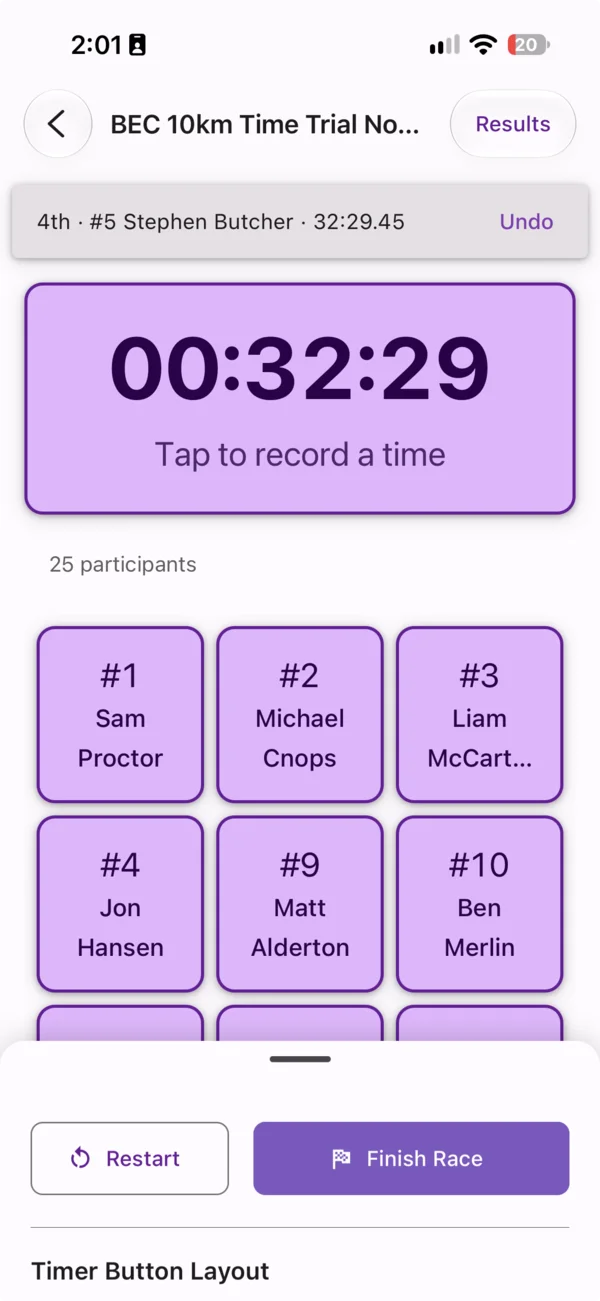
- Tap a runner’s timer button as they cross the line. Their finish time and position are recorded.
- If someone finishes and you can’t tell who it is, tap the large timer button. Chiron records a finish with no name, and you can identify the runner later.
- To mark a runner DNS (did not start), DNF (did not finish) or DQ (disqualified), open their result and choose the status.
Positions are given in the order you record finishes. You can choose what appears on the timer buttons — bib number, first name, last name — and sort or filter the runner list to find people quickly.
3. Fix mistakes as you go
Open a result to:
- change it to the right runner, or assign an unidentified finish to a runner who hasn’t finished yet;
- edit the finish time;
- mark or clear DNS, DNF or DQ;
- delete it. Deleting a runner’s result sets them back to not finished; deleting an unidentified finish removes it.
Positions close up automatically.
If you need to start again — a false start, or a practice run — tap Restart. This clears every finish time and position, restores the start list, and sets the race back to Registration Closed, ready to start again.
4. Finish the race
When the last runner is in, tap Finish Race. The race is marked Completed and the live results open. If you finished too early, tap Undo Finish and carry on timing — nothing you recorded is lost.
5. Publish results
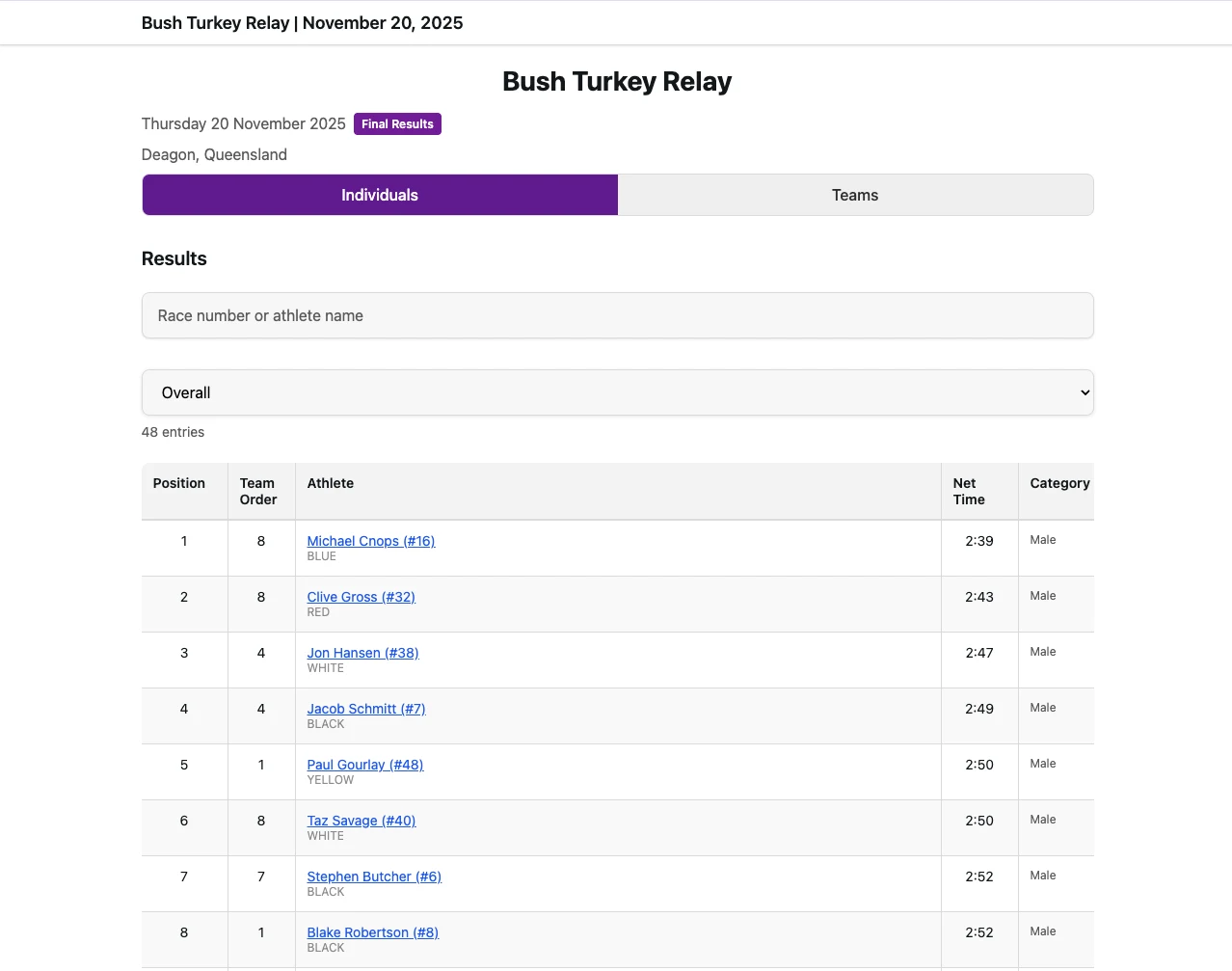
On the live results, tap Publish Results and confirm. Chiron uploads the results, works out overall, sex-category and age-category positions, and sets the event to Preliminary Results. Unidentified finishers are added to the start list as “unknown” so you can rename them later.
Results appear on the event’s public page straight away.
6. Finalise
Published results stay editable while the status is Preliminary Results. Check them in the event’s Results, make any corrections, then tap Mark as final. The status becomes Final Results, results are locked, and any series standings are updated.
To correct a result after that, tap Mark as preliminary, fix it, and mark final again.
Relay timing
For relay events, set up teams first — see Relay events.
Time a relay the same way: tap each runner’s button as they finish their leg. A team has finished once every member has a finish time, and the team’s time runs from the start of the race to the last member’s finish. When you publish, Chiron ranks the teams by that time. In Results, relay events show team results first, and each team opens to its members’ results.
Multiple timekeepers
Several timekeepers can time the same race at once, each on their own device — for example, one timekeeper per relay team. Each device keeps its own timing data until it publishes.
Multiple timekeepers can publish results, but if two timekeepers have both recorded the same participant, the last one to publish overwrites all previously published results for that participant. Agree beforehand who records which runners.
Each timekeeper starts their own clock! Every device records its own start time when its timekeeper taps Start Race, and that device’s finish times are measured from it. The start time saved with the published results is the one from the last device to publish. To keep times consistent, all timekeepers should tap Start Race together, at the gun.