Race events belong to a club, so create a club first.
Create a race event
- Go to More → Clubs, open your club, and tap Events.
- Tap New Event.
- Enter the Event Title and Start Date.
- Fill in the other details you need:
- Sport Type, Status, Description, Location and Distance
- Race Type — Individual or Relay (see Relay events)
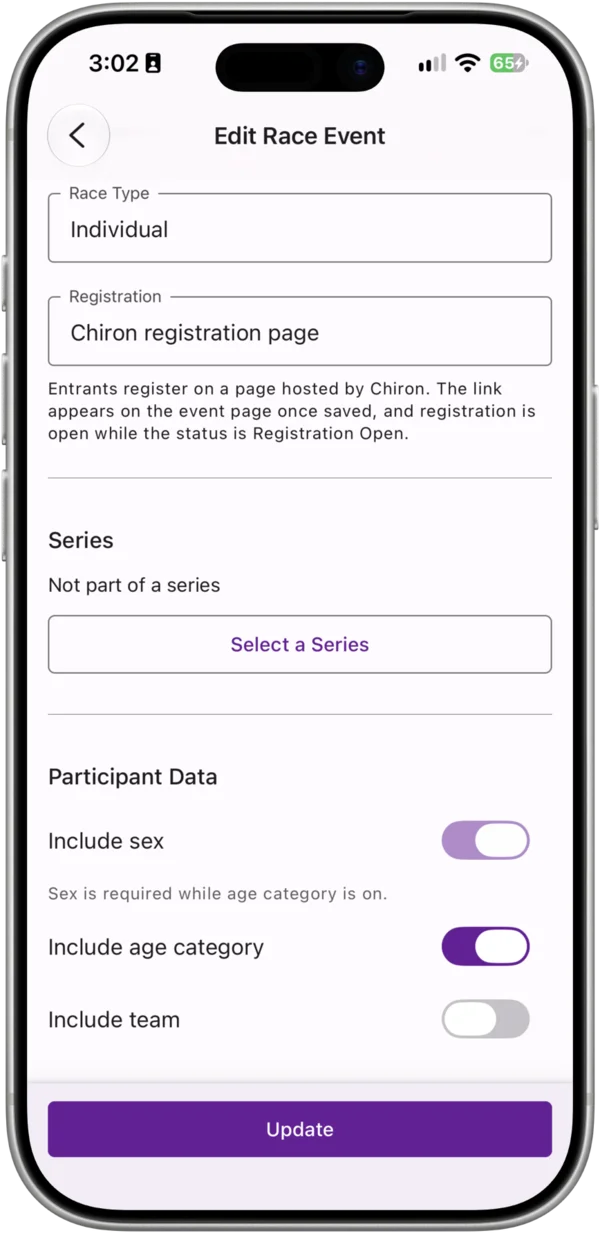
- Registration — how entrants sign up (see Registration)
- Part of a series — attach the event to one of your club’s race series
- Participant Data — choose whether the start list records each entrant’s sex, age category and team. Age category needs sex, so sex stays on while age category is on.
- Tap Create Event.
New events start with the status Paused. Change the status as your event moves towards race day — see Race statuses.
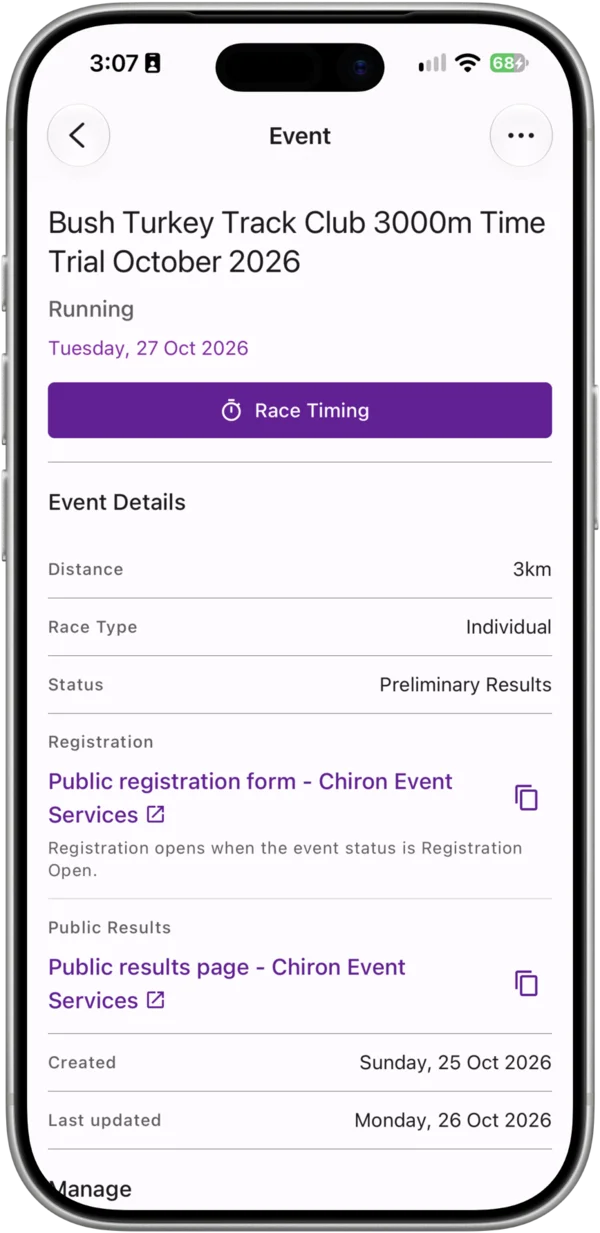
Every event has a public page at events.chironapp.com/events/{event id} showing its start list and, once published, its results. You’ll find the link on the event screen under Public Results.
Edit, duplicate or delete an event
Open the event and tap Edit to change its details. Duplicate and Delete are in the event’s menu.
Duplicating opens a new event form pre-filled with the original’s details and titled “Copy of …”. The copy starts with an empty start list and no registration link — choose its registration option again.
Registration
The Registration option on the event form decides how entrants sign up:
- No registration link — you add entrants yourself.
- My own registration link — enter the web address of your own registration form. Chiron shows it on the event page.
- Chiron registration page — entrants register on a page hosted by Chiron, and each registration goes straight onto your start list. See Race event public registration form.
Entrants can only register while the event’s status is Registration Open — that’s when the Register Now button appears on the public event page. In the app, the event screen shows the registration link at any time, with Copy link for the Chiron registration page so you can share it.
Start list
Open the event and tap Start List. You can add entries in several ways:
- Add Participant — add one person. First and last name are required; email is optional. A bib number is assigned automatically, or you can enter your own — each bib number can only be used once per event.
- Paste Bulk — paste many entrants from a spreadsheet. See Import bulk entries.
- Copy from Event — copy every entrant from another of your club’s events, including their teams.
- Integrations — receive entries from an online form through a webhook.
- Public registration — entrants sign themselves up on the Chiron registration page.
You can search, sort and filter the start list, edit an entry, or select entries and delete them.
Relay events
For a relay, set Race Type to Relay, then build teams:
- Open the event and tap Teams.
- Tap + to add a team, enter a Team Name, and save. Team names must be different within an event.
- Open the team and tap Add/Remove Members.
- Select the team’s members from the start list, then confirm. Each entrant can belong to one team.
A relay team’s time is taken from the last team member to finish. Teams are ranked by that time, fastest first.
Teams can also come from a Team column when you import bulk entries, or with the entrants when you use Copy from Event.
Race timing
To start the race and record finish times in the app, see App race timing.
Race statuses
| Status | What it means |
|---|---|
| Draft | Being set up; not yet open to entrants |
| Paused | On hold. New events start here. |
| Registration Open | Accepting entries. Required for the Chiron registration page. |
| Registration Closed | Entries closed; the race hasn’t started |
| Started | The race is under way and finish times are being recorded |
| Completed | The race has finished; results aren’t published yet |
| Preliminary Results | Results are published and can still be edited |
| Final Results | Results are published and locked. Series standings are updated. |
| Cancelled | The event won’t take place |
You can set the status yourself on the event form. Race timing and publishing also move it along — see App race timing.
Editing published results
Open the event and tap Results.
- While the status is Preliminary Results, you can open any result and correct it: change the finish time, swap or change the participant, mark DNS, DNF or DQ, or delete the result. Positions are recalculated automatically.
- When results are correct, tap Mark as final. The status becomes Final Results and results are locked. If the event is part of a series, the series standings are updated.
- To correct a result after marking final, tap Mark as preliminary, make the change, then mark final again.