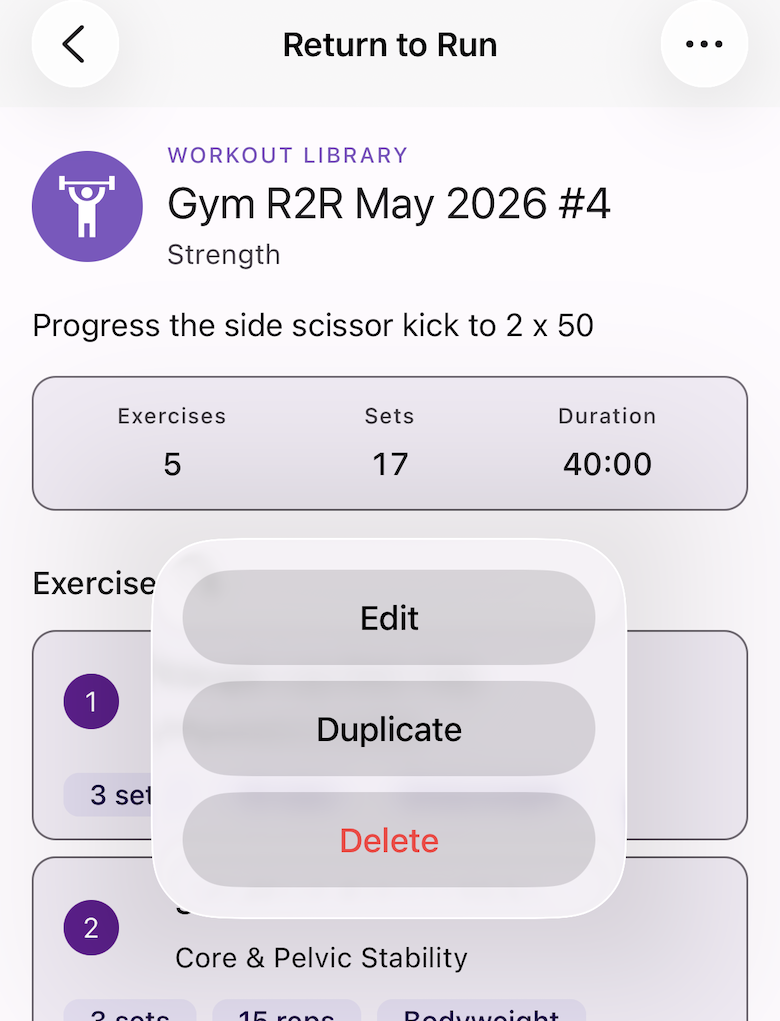
What is the Workout Library?
The Workout Library is a collection of saved workouts you can schedule to any date on your calendar — or to your athletes’ calendars if you’re a coach. Any workout type can be saved to the library: run sessions, strength, cross training, and more.
Organise with Categories
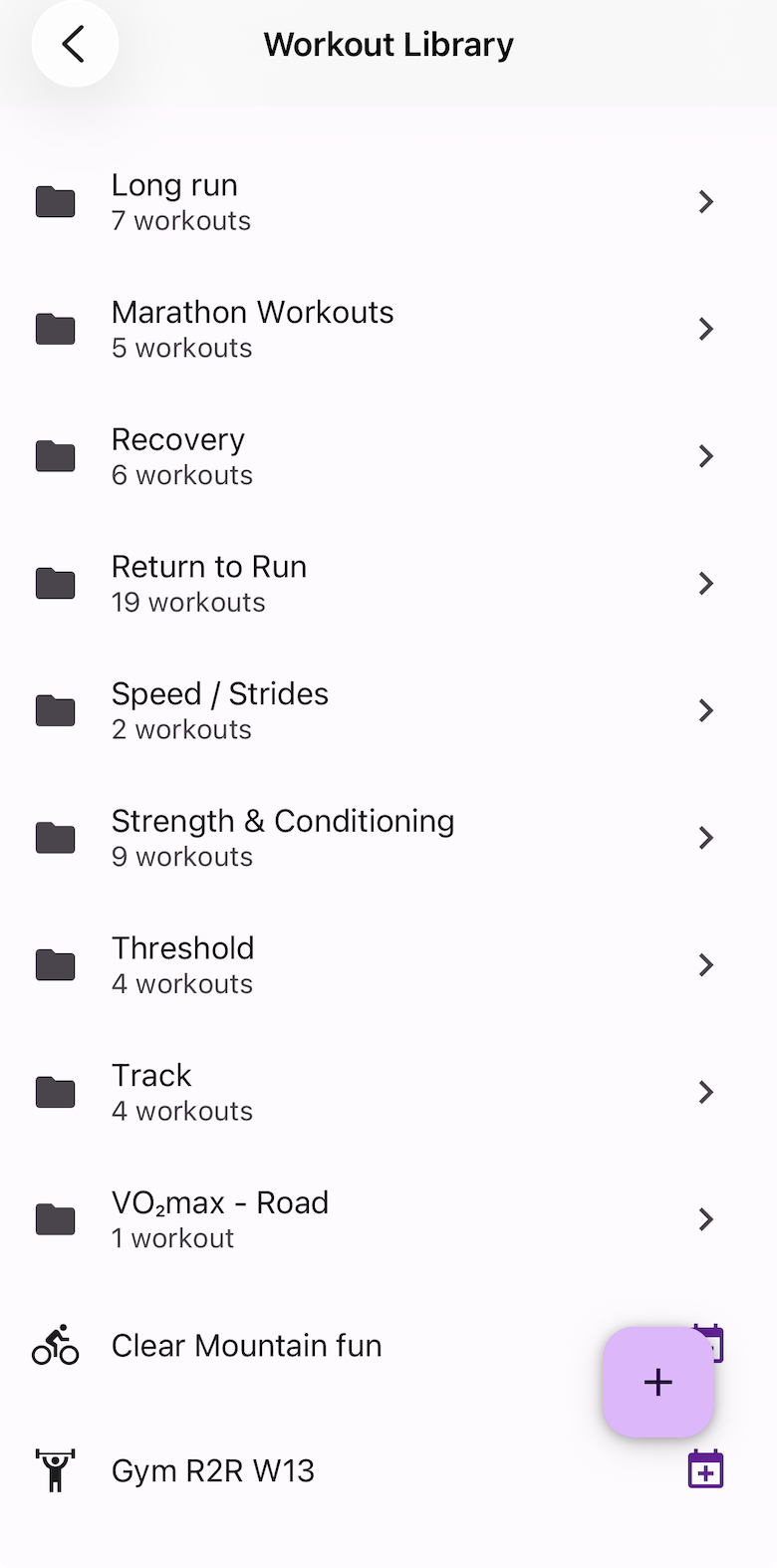
Categories are folders for your Workout Library — group workouts by type, training phase, or whatever makes sense for how you coach or train.
- In the Workout Library, tap Add → Category.
- Give it a name (e.g. Track Sessions, Race Week, Rehab).
- To add a workout to a category, open the category and add a new workout, or set the category in the new/edit workout screen.
Create a new workout in the Library
- Navigate to the Workout Library: Schedule → Add → Library Workout, or More → Workout Library.
- Tap Add → Workout and set the activity type and category.
- Fill in the workout details, then tap Save.
For strength and physical therapy workouts, see Strength & Conditioning in Chiron for a full walkthrough of adding and managing exercises.
Save a scheduled workout to the Library
If you build a one-off workout directly on the Schedule and want to reuse it later:
- Tap the workout on the Schedule to open it.
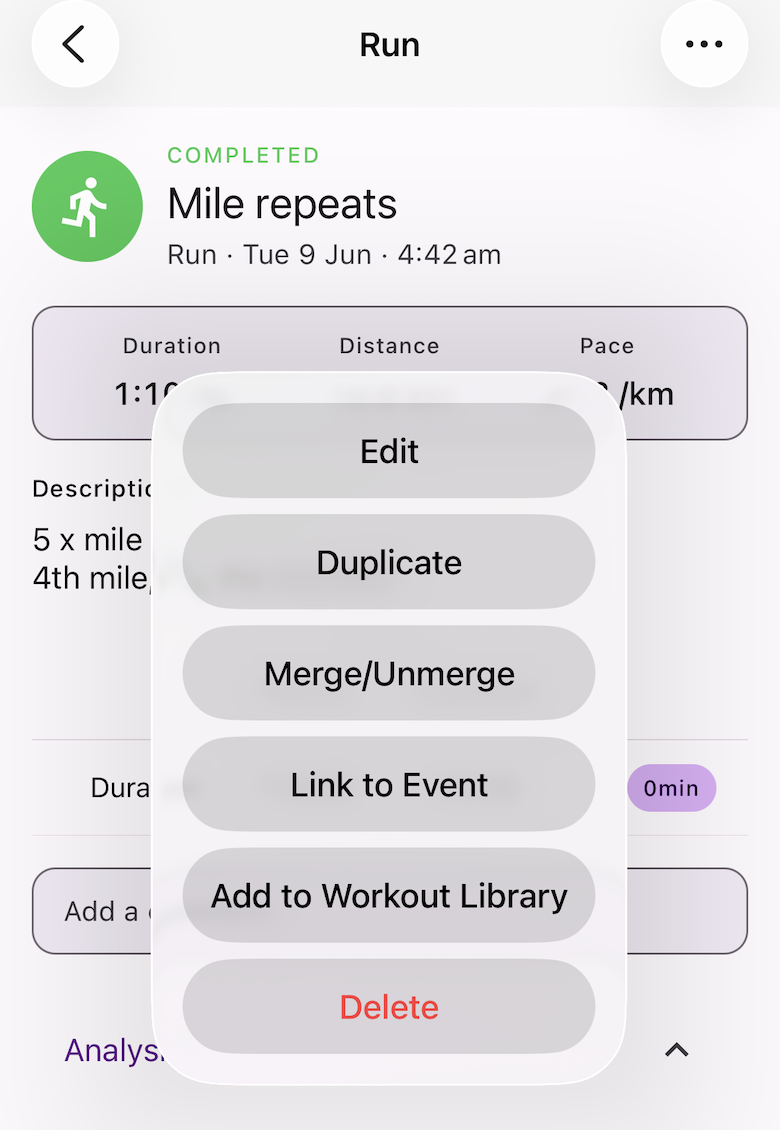
- Tap the three-dot menu → Add to Workout Library.
The workout is added to your Library and can be scheduled to any date from there.
Duplicate a Library workout
Duplicating lets you create a variation — a progressive overload version, for example — without modifying the original.
- In the Workout Library, find the workout.
- Tap the three-dot menu → Duplicate.
- A copy appears in the Library — tap it to rename and edit.