How to Import Race Results in Bulk Using Paste Race Results
Chiron lets you import a full history of race results from any spreadsheet in one go — perfect for athletes who have years of results in tools like Athlinks, Strava bulk export, or their own tracking sheets.
1. How to Open the Feature
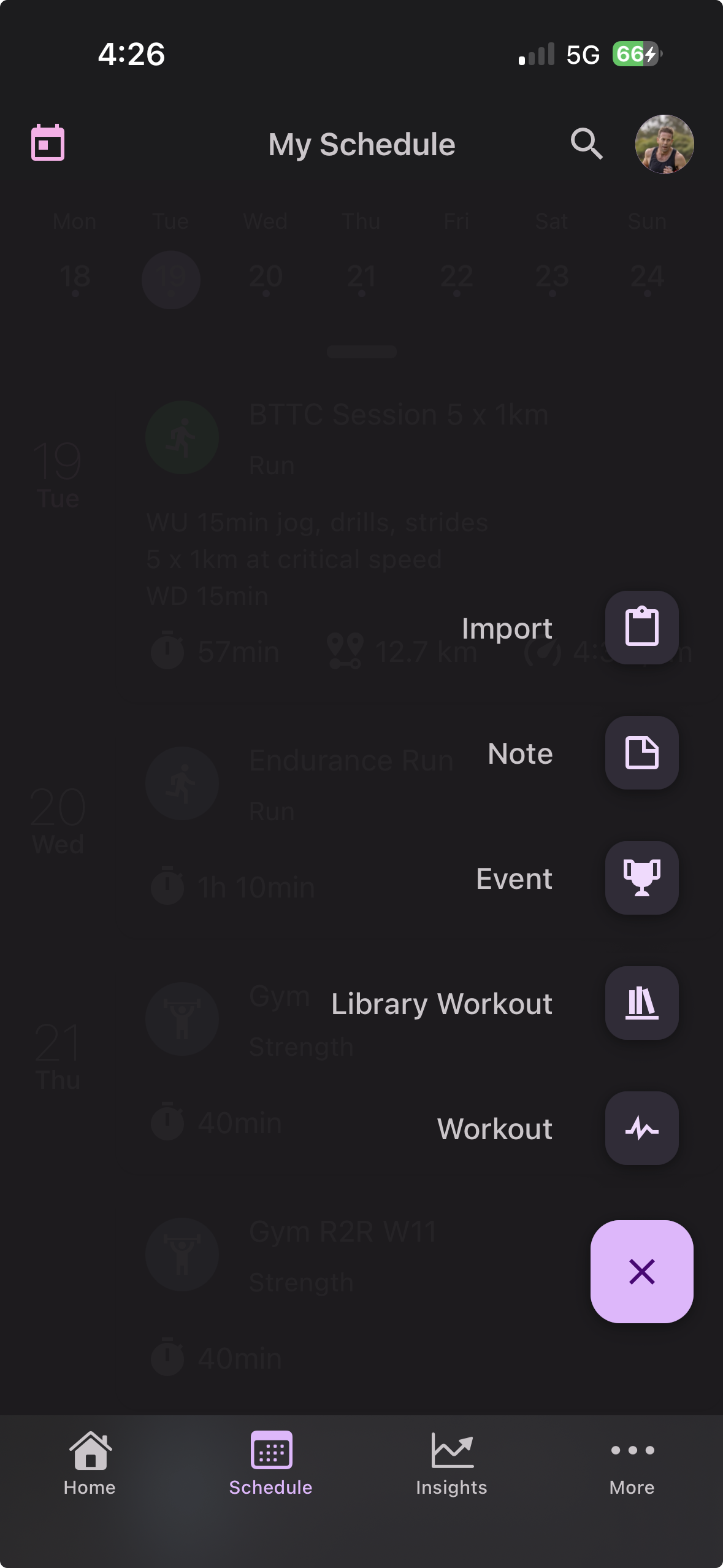
Navigate to the Schedule tab, tap the + Add button, then select Import → Import Race Results.
2. Prepare Your Spreadsheet
- • Works with Google Sheets, Excel, Numbers, or any tab-separated data.
- • The first row must be column headers.
- • Column names are case-insensitive and flexible — see the table below for accepted names.
- • You don't need every column — only the four required ones.
Column Reference
| Field | Required | Accepted Column Header Names |
|---|---|---|
| Title | ✅ Required | title, name, event name, eventname, race name, racename |
| Event Date | ✅ Required | date, event date, eventdate, race date, racedate |
| Finish Time | ✅ Required | finish time, finishtime, time, gun time, guntime, gun finish time, clock time, clocktime, result |
| Distance | ✅ Required | distance, event distance, eventdistance, race distance, racedistance |
| Net Finish Time | Optional | net finish time, netfinishtime, net time, nettime, chip time, chiptime, personaltime |
| Overall Position | Optional | position, overall position, overallposition, overall, finish position, finishposition, rank |
| Sex / Gender Position | Optional | sex category position, sexcategoryposition, sex position, gender position, genderposition, sex place, genderrank |
| Age Category Position | Optional | age category position, agecategoryposition, age position, ageposition, age place, age group position, rankincategory |
| Result URL | Optional | result url, resulturl, results url, resultsurl, result link, resultlink, official result, source |
| Description / Notes | Optional | description, notes, comments, note |
Distance values can be entered as metres (e.g. 21097) or as a recognised label (Half Marathon, 5K, Marathon, etc.).
Time values should be either an integer in seconds, HH:MM:SS, or MM:SS format.
Date values should be YYYY-MM-DD or DD/MM/YYYY — if Chiron reads day and month the wrong way around, use the Swap day/month button.
3. Paste and Preview
- 1. Select all rows in your spreadsheet (including the header row) and copy.
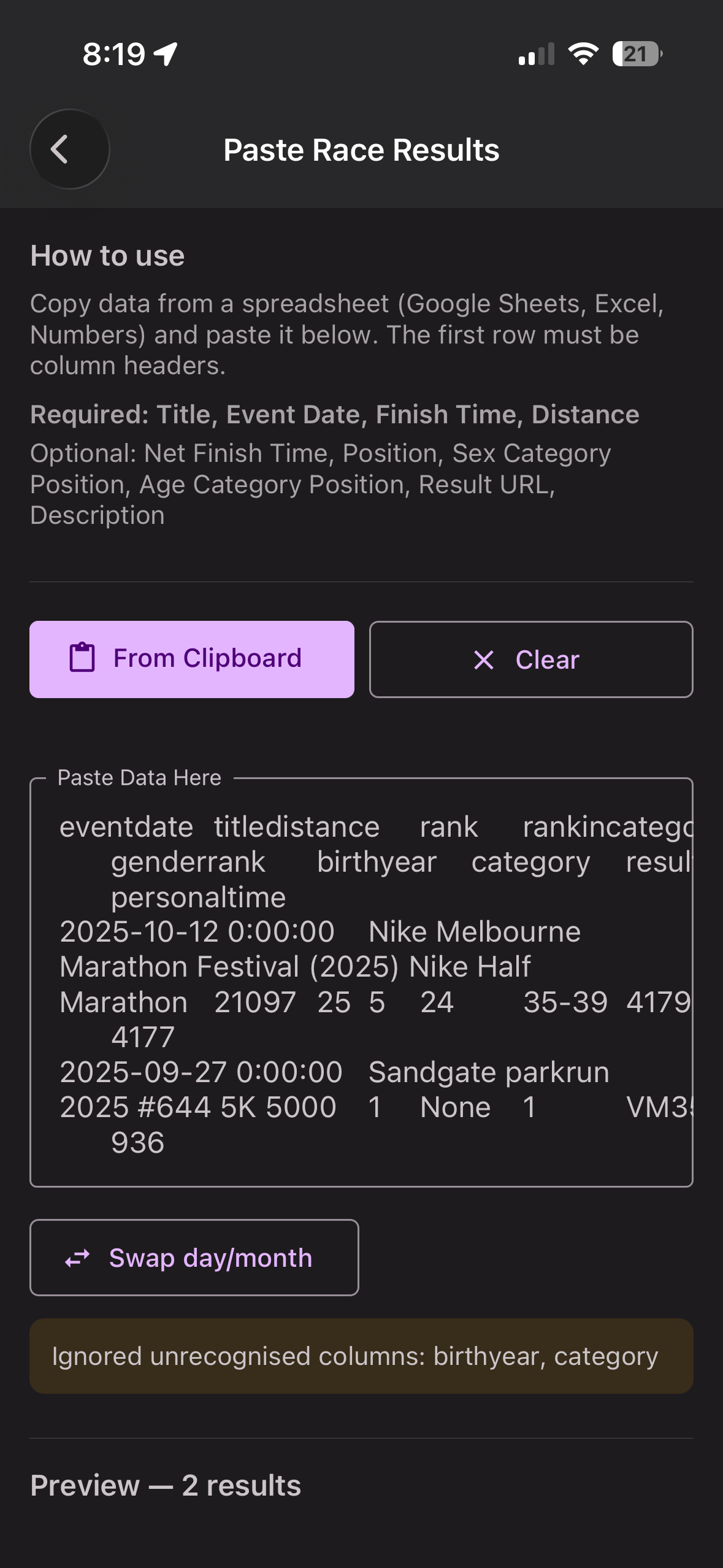
- 2. In Chiron, tap From Clipboard — or tap the text area and paste manually.
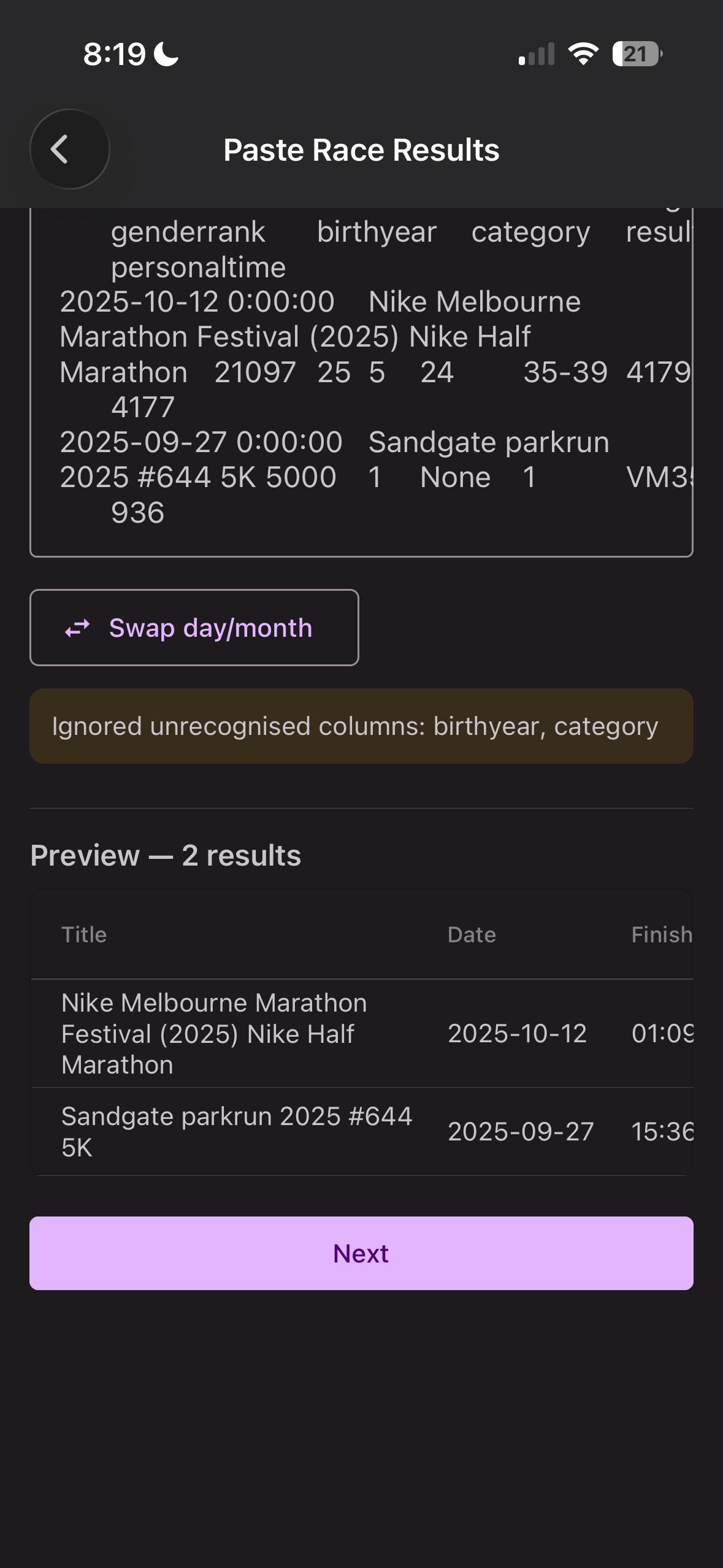
- 3. Chiron immediately parses the data and shows a live Preview table.
- 4. Any unrecognised column names appear in an orange warning banner — they are ignored, not an error.
- 5. If required columns are missing, a red error banner lists which ones.
- 6. If dates look like they're day/month-swapped, tap Swap day/month.
4. Confirm and Import
Tap Next to move to the Confirm Import screen.
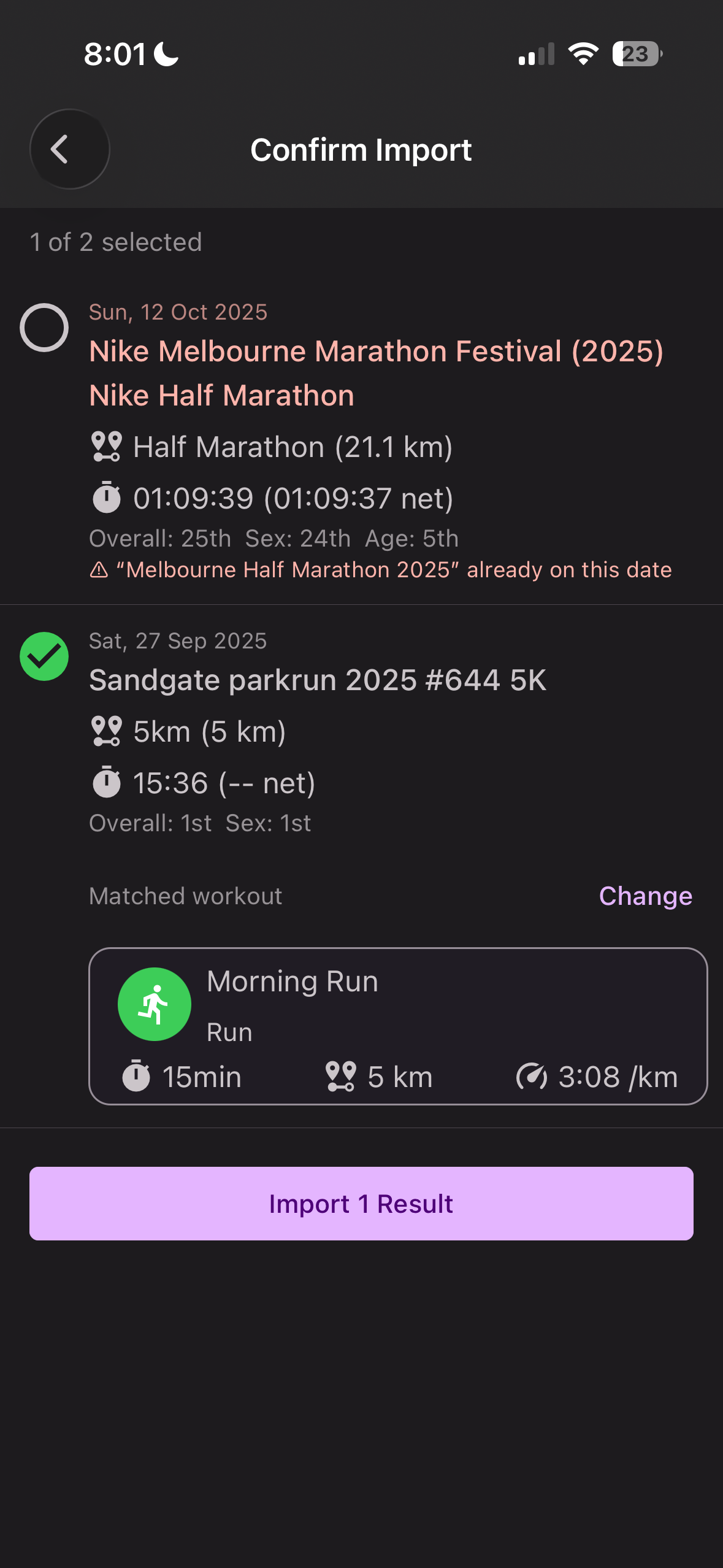
- • Each result is listed with its date, title, distance, and times.
- • Results that conflict with an existing event on the same date are flagged with a warning and deselected by default — you can still choose to include them.
- • Chiron automatically tries to match each result to a workout on your schedule for the same date and distance. Tap Change next to any result to pick a different workout, or leave it unlinked.
- • Toggle the checkbox next to any result to include or exclude it.
- • Tap Import N Results to save. Chiron adds the selected results as completed race events on your schedule.
5. What the Result Looks Like
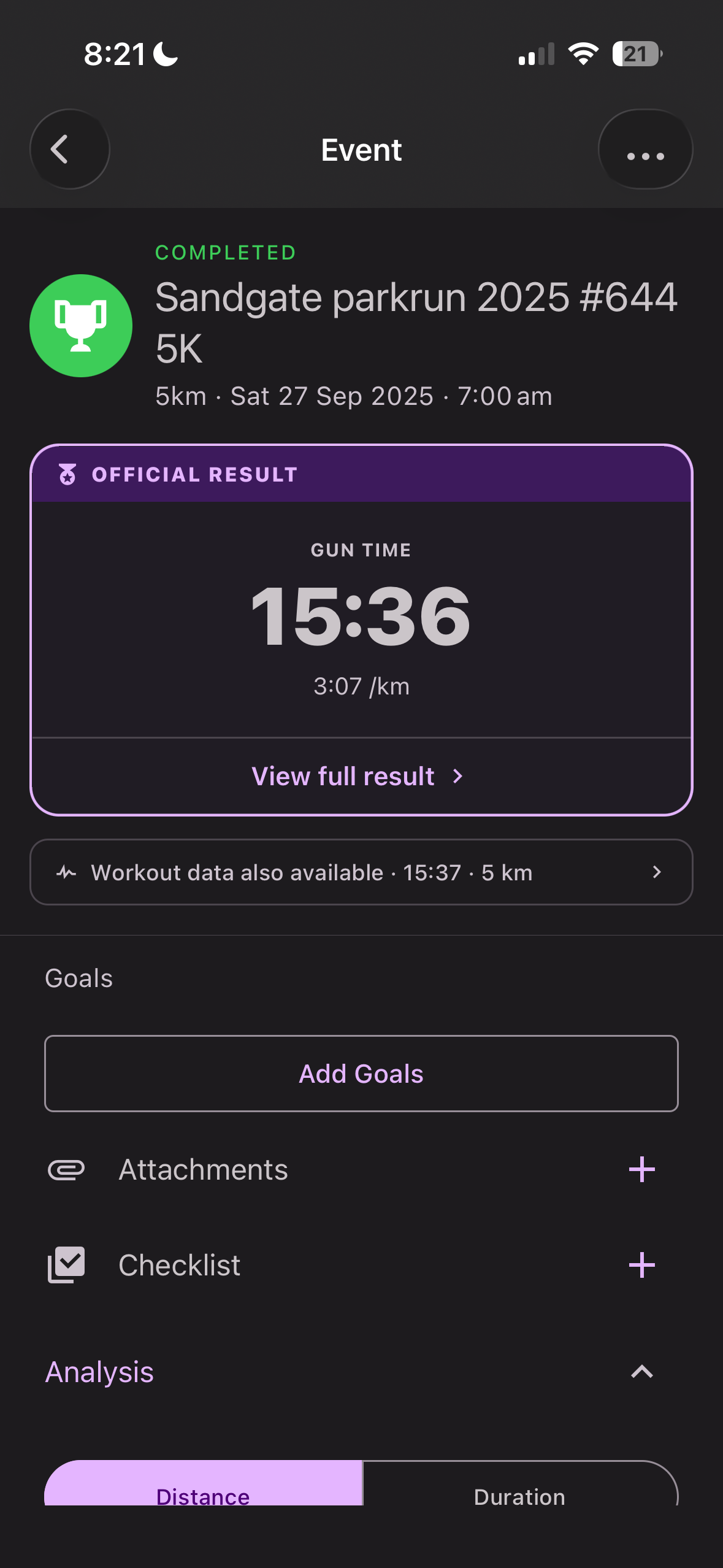
After a successful import, each race result appears as a completed event on your Schedule, showing your gun time and pace as an Official Result.
Tips & Limits
- • You can import up to 100 results per paste. The preview truncates at 100 but the counter shows the full total.
- • Chiron only checks for conflicts on the date — importing the same result twice on the same date will be flagged.
- • After import, results appear on your Schedule and count toward your Insights.
Need More Help?
Can't find what you're looking for? Get in touch with our team.