Send invitations
- Go to More › My Athletes.
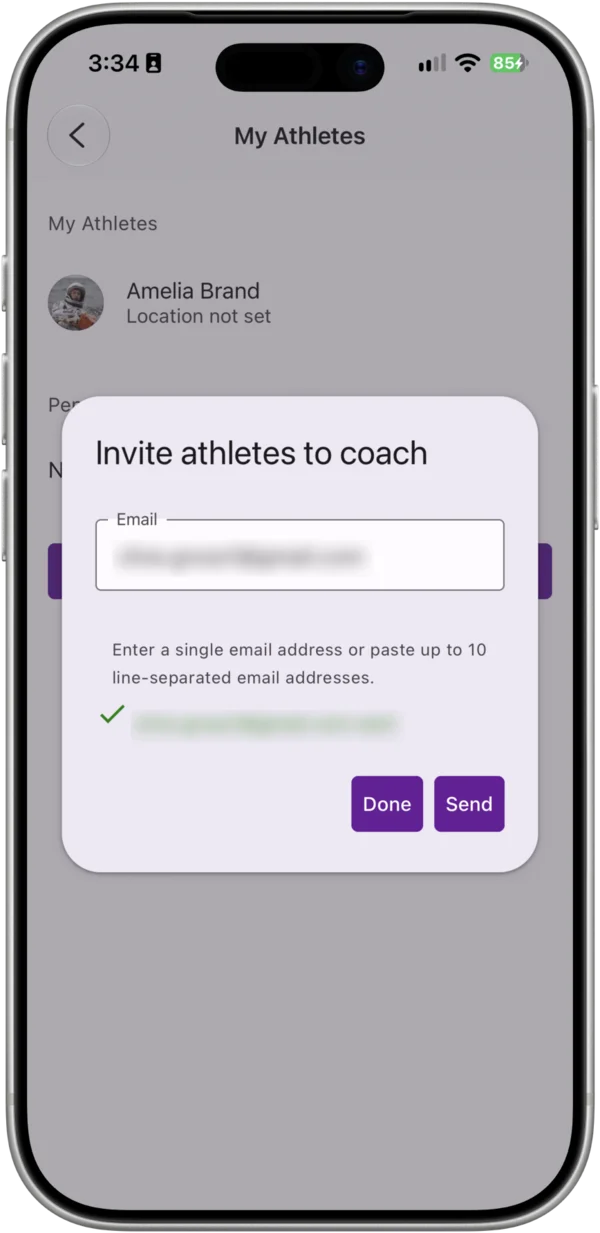
- Tap Invite Athletes. On the desktop web app it’s at the top right of the screen.
- Enter up to 10 email addresses.
- Send the invites.
Chiron shows a result for each address, so you can see which invitations were sent and which failed, and why.
What the athlete receives
- Athletes who already use Chiron get an email and a push notification. They accept from More › My Performance Team in the app.
- People who aren’t on Chiron yet get an email inviting them to join. When they sign up with that email address and verify it, your invitation is waiting for them and they’re offered it during onboarding.
Before accepting, the athlete is told that you’ll be able to see their workouts and training data, and plan sessions for them. You can’t see any of their training until they accept.
Track pending invitations
Outstanding invitations are listed on My Athletes. Invitations to people without a Chiron account are shown by email address. Pending requests from registered athletes are also listed under Coaching Requests.
Cancel an invitation
Open the pending invitation and choose Cancel invitation. If the person signs up later, they won’t be connected to you from that invitation.
Limits
To prevent spam, there’s a daily limit on how many invitations you can send, and a short wait before you can re-invite the same address. If you hit a limit, the result for that address explains why.