If you record one session as several activities, such as a warm-up, a track session and a cool-down, or you changed shoes partway through, each arrives in Chiron as a separate workout. Merging combines them into one workout, so your schedule shows the session as you planned it.
Merge workouts
- Open one of the workouts.
- Tap the ⋮ menu and choose Merge/Unmerge.
- Chiron lists that day’s Planned Workouts and Completed Activities of the same activity type. Select the ones to merge.
- Tap Merge. You’ll see Workout merged successfully!
For example, if you recorded your warm-up separately from the main session, merge the warm-up activity into the session’s planned workout. Your schedule then shows one workout for the session instead of several, which keeps it simple to read and compare against the plan.
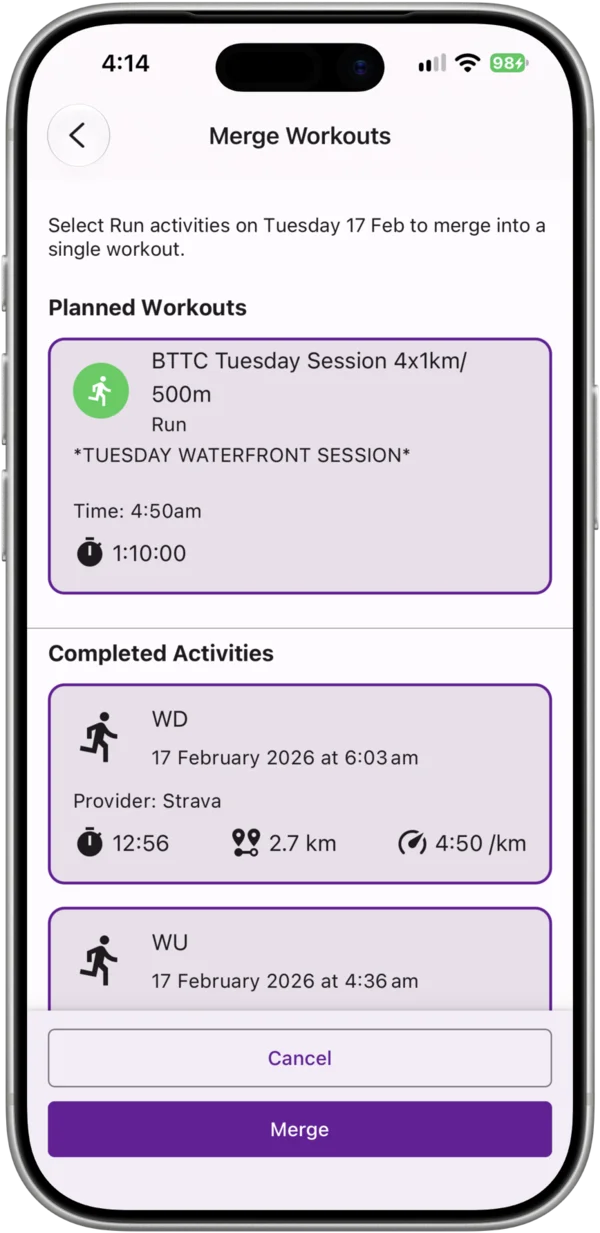
Only workouts of the same activity type on the same date can be merged. If there are none, Chiron says there are no workouts to merge on that date.
Unmerge
Open the merged workout, tap the ⋮ menu, choose Merge/Unmerge again and deselect the activities you want to split back out.
Who can merge
Only the athlete can merge their own workouts. Coaches can’t merge workouts on an athlete’s behalf, because only the athlete knows whether a split was intentional.