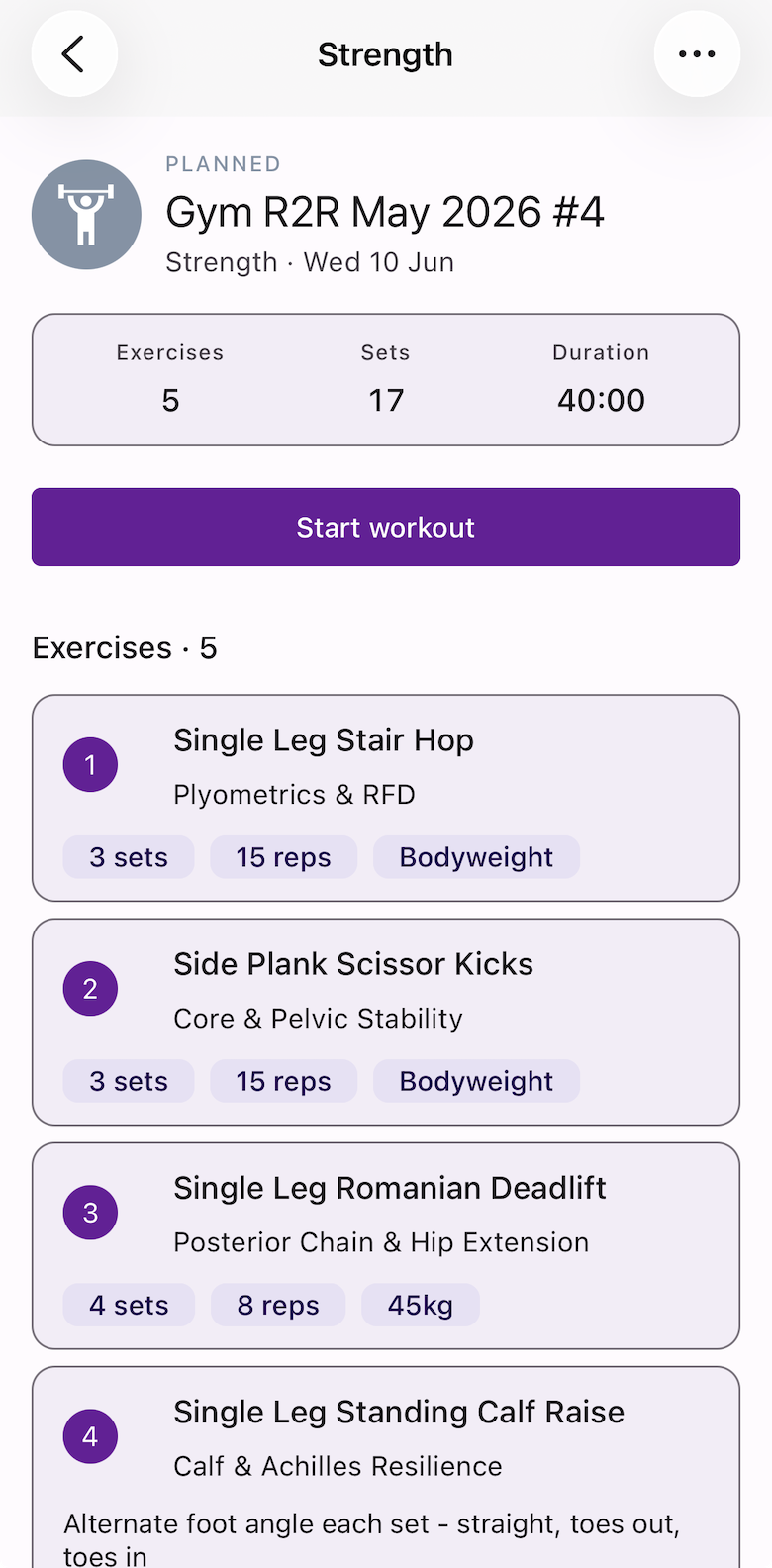
Start the workout
Open your Schedule and tap today’s strength workout. Tap Start Workout to begin.
A timer starts running from the moment you begin, recording your total session time.
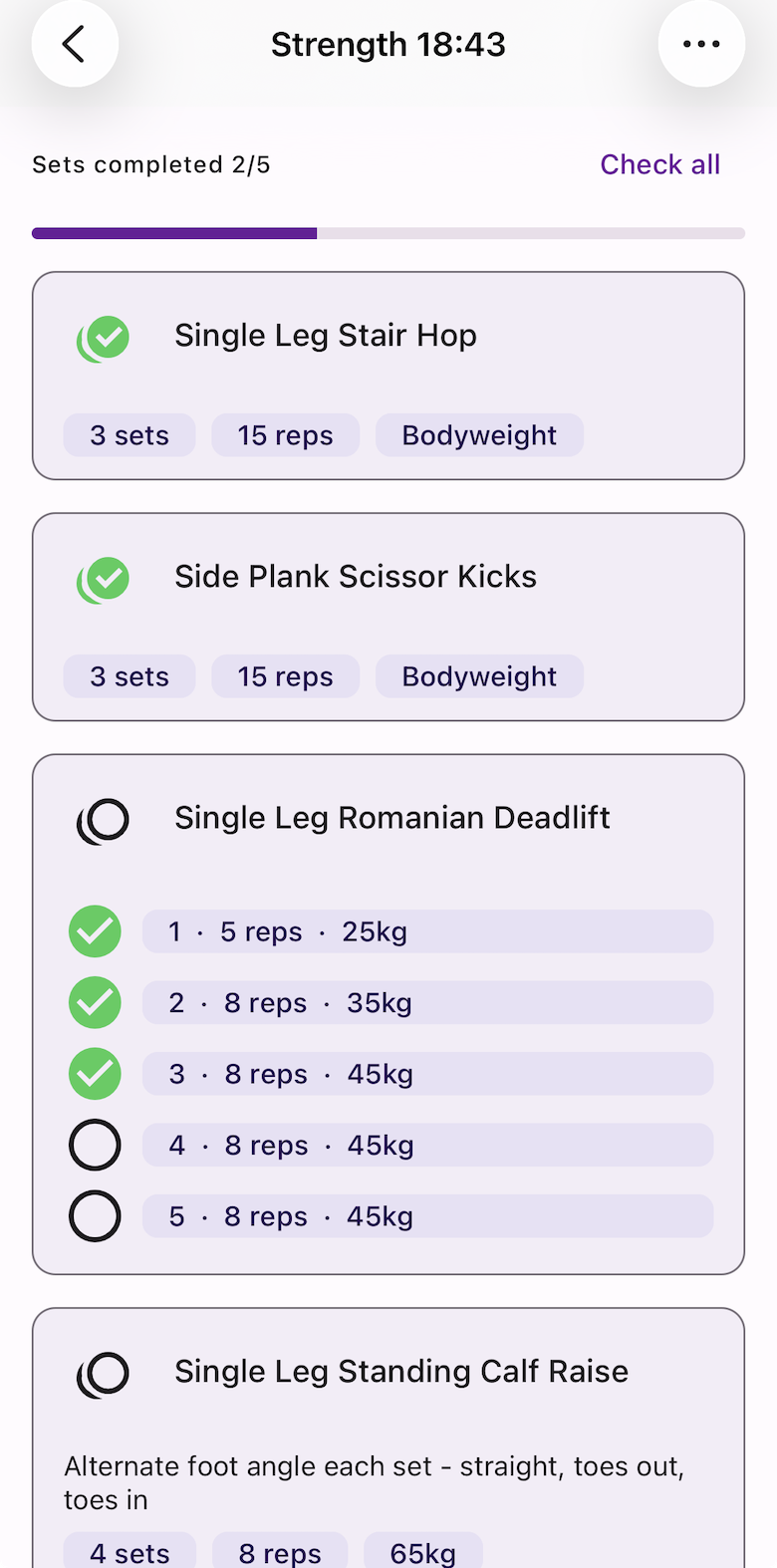
Record your exercises
For each exercise, you have two options:
- Check off — tap the checkbox to mark the exercise complete without logging set detail. Good for activation drills or bodyweight circuits.
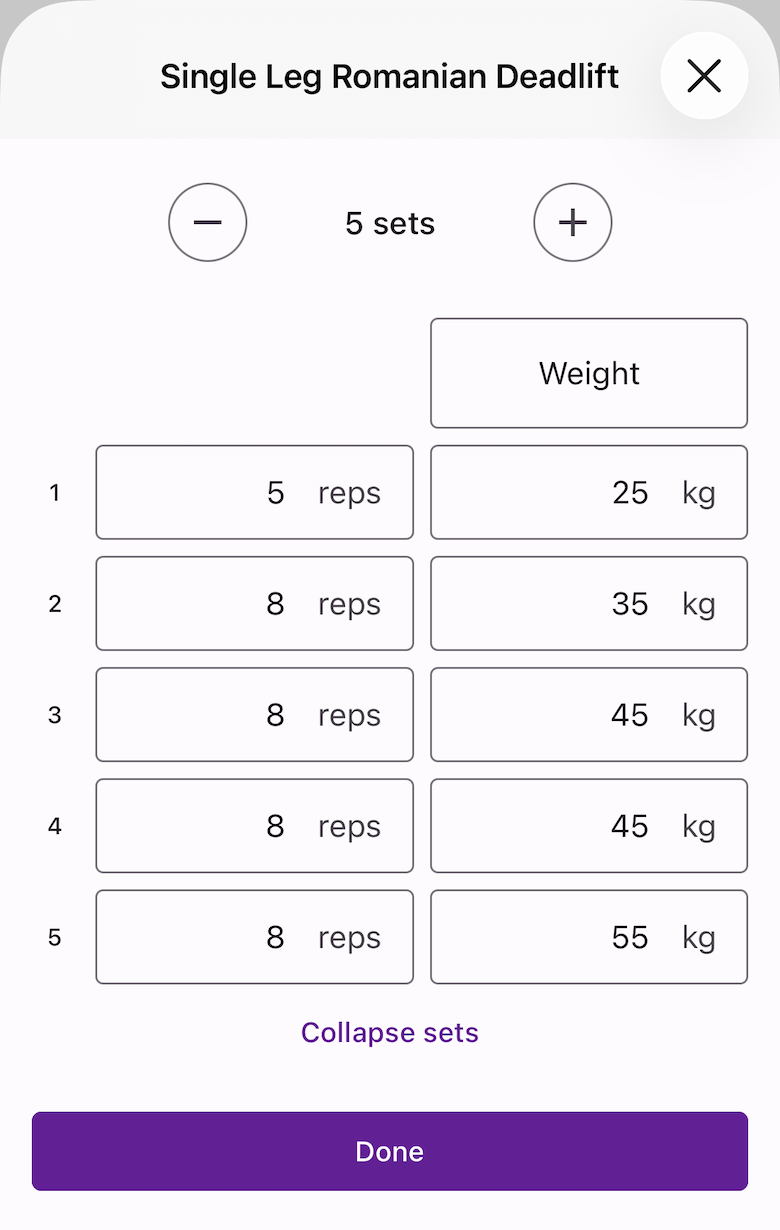
- Log by set — tap into each set to record actual reps and load completed. Useful when your actual session differed from the plan — heavier top set, dropped reps on the last set, and so on.
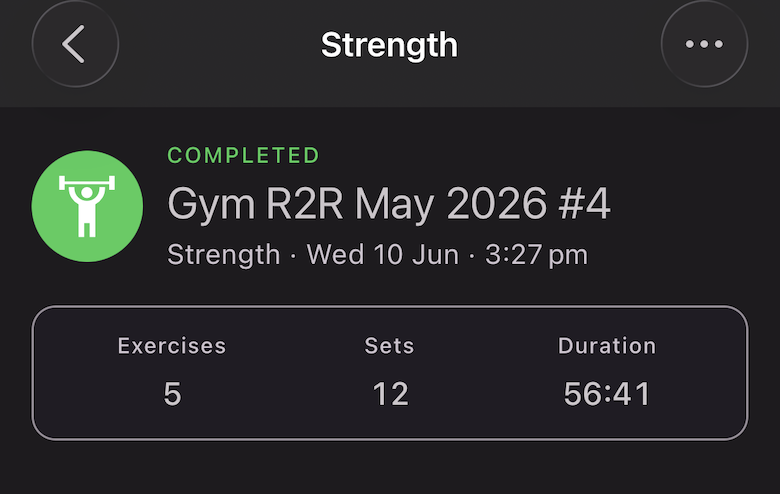
Finish the workout
When done, tap Finish Workout.
Your completed session is saved with total duration, exercises completed, and any set-level data you recorded. It appears in your training history alongside your run and other activity data.