How coaching works in Chiron
Your coach invites you from their Chiron account using your email address. You can’t add a coach yourself. Ask your coach to send you an invitation.
Accept an invitation
You’ll get an email and, if notifications are on, a push notification when a coach invites you. You may also see a banner in the app: You have a pending invitation from a coach.
- Go to More › My Performance Team.
- Under Pending Invitations, open the invitation.
- Read what accepting allows, then tap Accept Invitation. To say no, tap Decline Invitation.
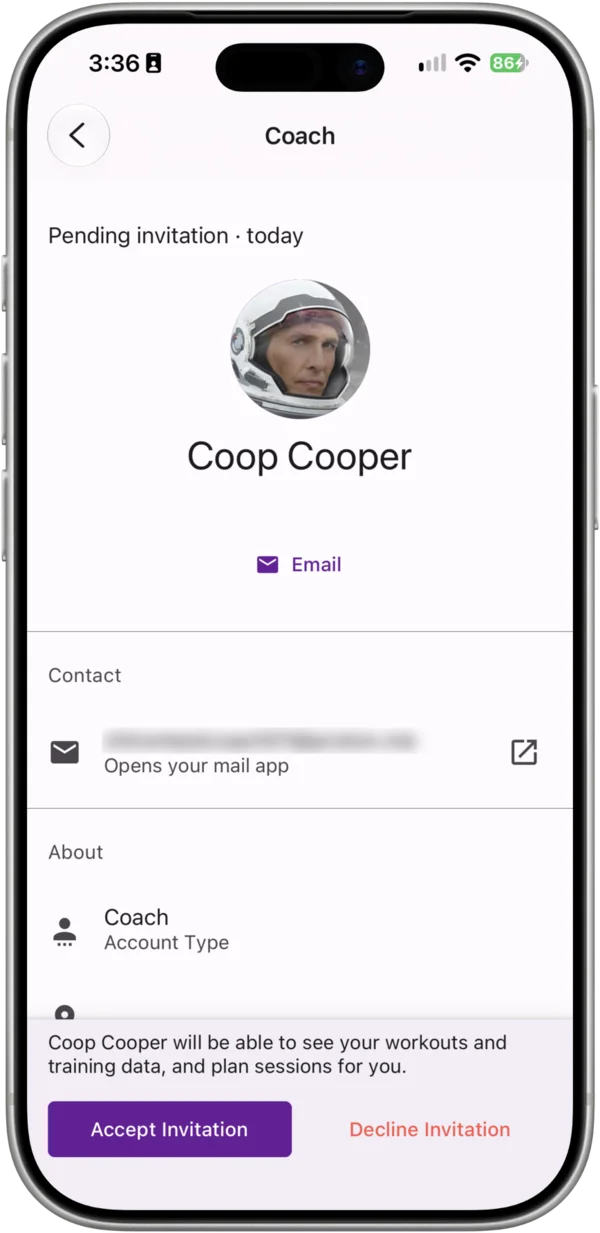
If you haven’t signed up yet, create your account with the email address your coach invited. The invitation will be waiting for you when you verify your email, and you’ll be offered it during onboarding.
What your coach can see and do
Once you accept, your coach can:
- see your schedule, workouts, events, notes and training data,
- plan workouts and events in your schedule,
- comment on your workouts and notes.
Your coach can’t merge your workouts, or start, finish or change the exercises you’ve logged in a strength workout.
Talking to your coach
Use comments on workouts and notes to discuss a session. See Comments on Workouts and Notes.
Remove a coach
- Go to More › My Performance Team.
- Open the coach.
- Tap Remove Coach and confirm.
Your coach loses access to your training. Your account and training history stay with you.