A label is a coloured bar across one or more days on your schedule. Use it for a holiday or work trip, an injury or illness, a training camp, a taper, or a race week — anything you want to stand out at a glance, whether it’s a single day or a longer stretch, without a note repeated on every day.
Notes are still the place for a thought tied to what happened on one specific day. Labels are for marking a period — even a single day — so it’s visible across the whole schedule. See Creating Notes.
Create a label
- Open the Schedule tab.
- Tap +, then Label. You can also tap + on a day and choose Label, which sets that day as the start date.
- Give the label a Title, such as “Singapore” or “Calf strain”.
- Optionally add a Description, such as flight days or what your physio has cleared you to do.
- Set the Start and End dates. For a single day, use the same date for both.
- Choose a Colour.
- Tap Create.
The label appears on every day it covers straight away.
How labels look on your schedule
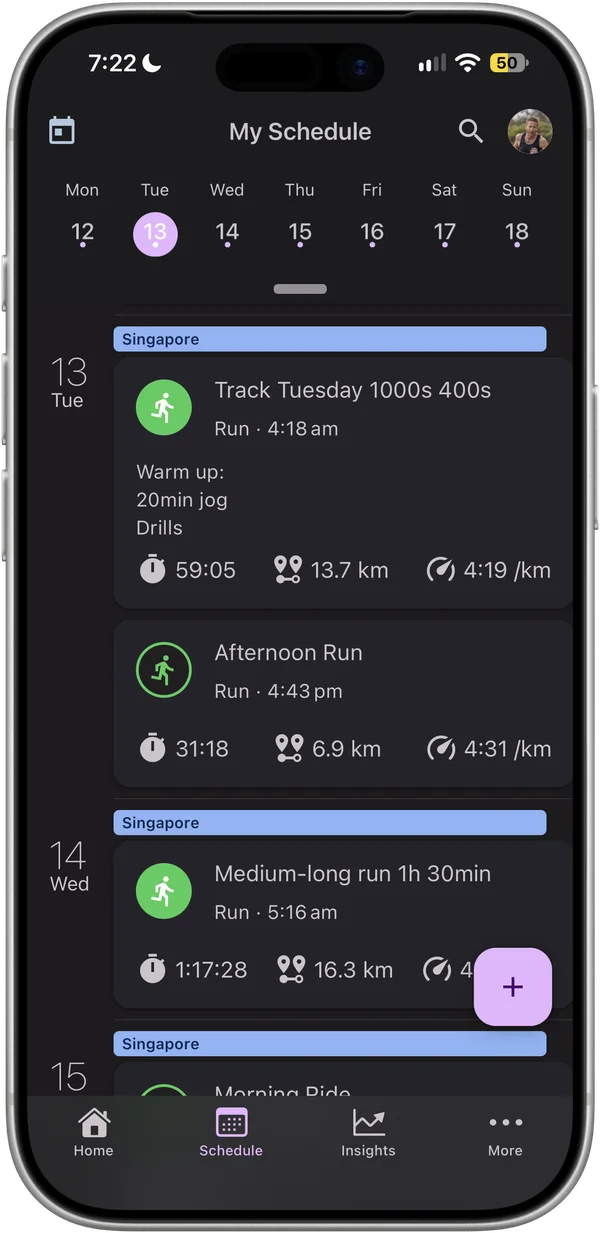
On iPhone, each day a label covers shows the label’s bar and title above that day’s workouts, including days with nothing else planned.
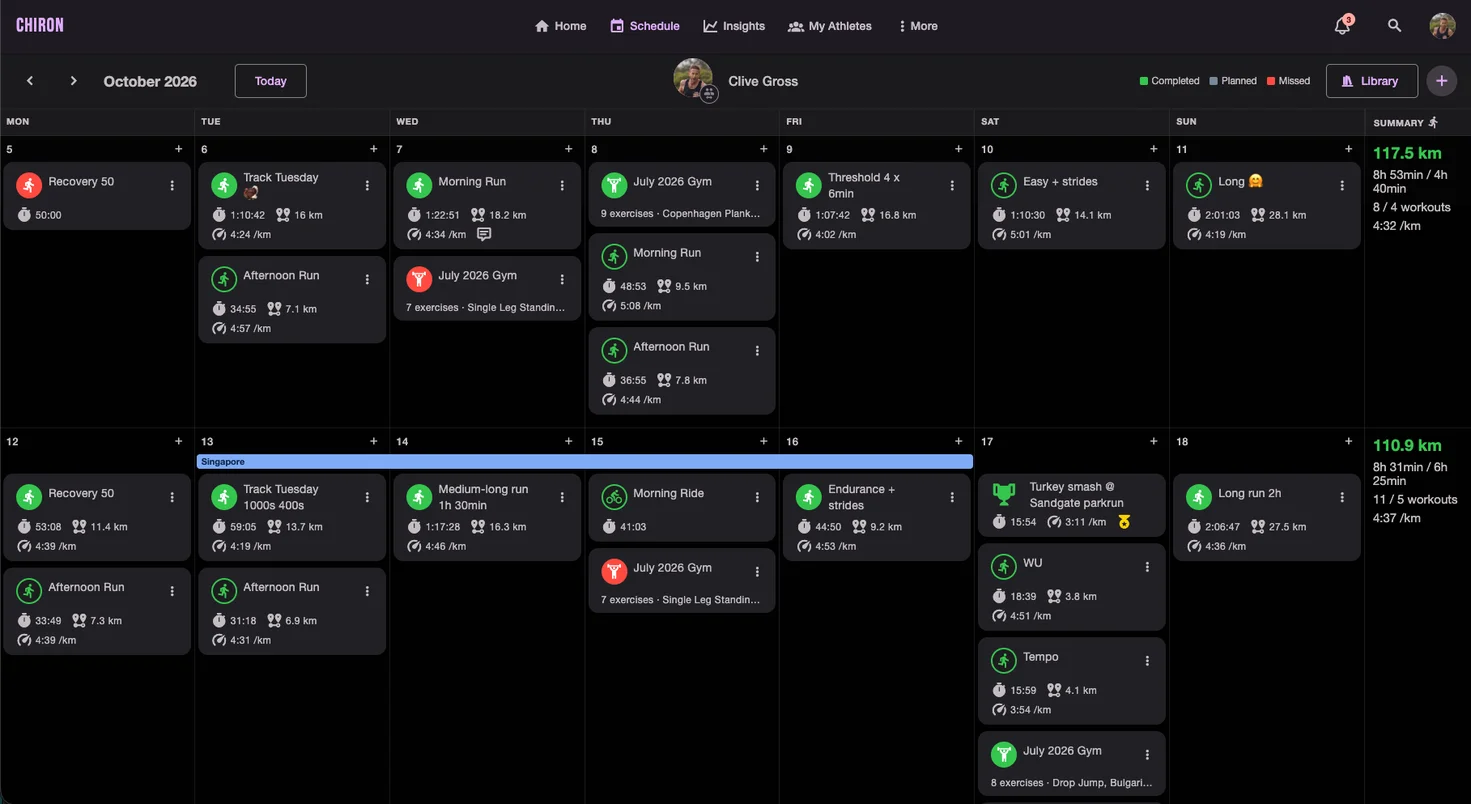
On the desktop web app, the label is one bar spanning its days, just below the date. A label that runs into the next week continues on the next row. If labels overlap, they stack one above the other.
Edit a label
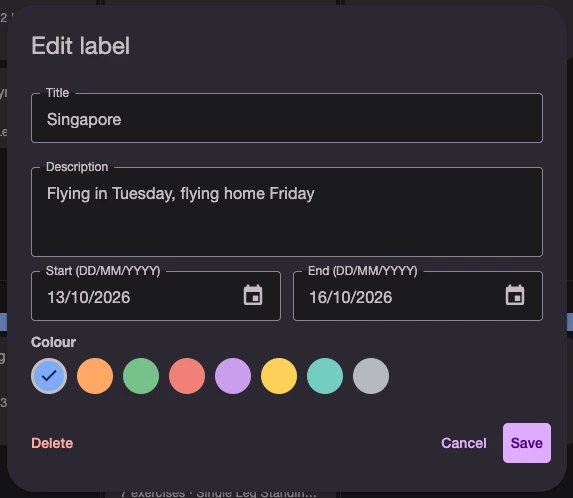
Tap the label’s bar to open it. Change the title, description, dates or colour and tap Save.
Delete a label
Tap the label’s bar, then tap Delete. The label is removed from every day it covered. Changed your mind? Tap Undo on the message that appears.
Labels and your coach
Your coach sees your labels on your schedule, and can create, edit and delete them for you. If you’re heading away or picking up an injury, adding a label is a quick way to let your coach know so they can plan around it.
Coaches: switch to an athlete’s schedule and add a label exactly as you would on your own. See Viewing and Planning an Athlete’s Training.
Labels are visible only to you and your coach. They don’t appear in schedule search.