Switch to an athlete’s schedule
Chiron shows one schedule at a time: yours, or one of your athletes’.
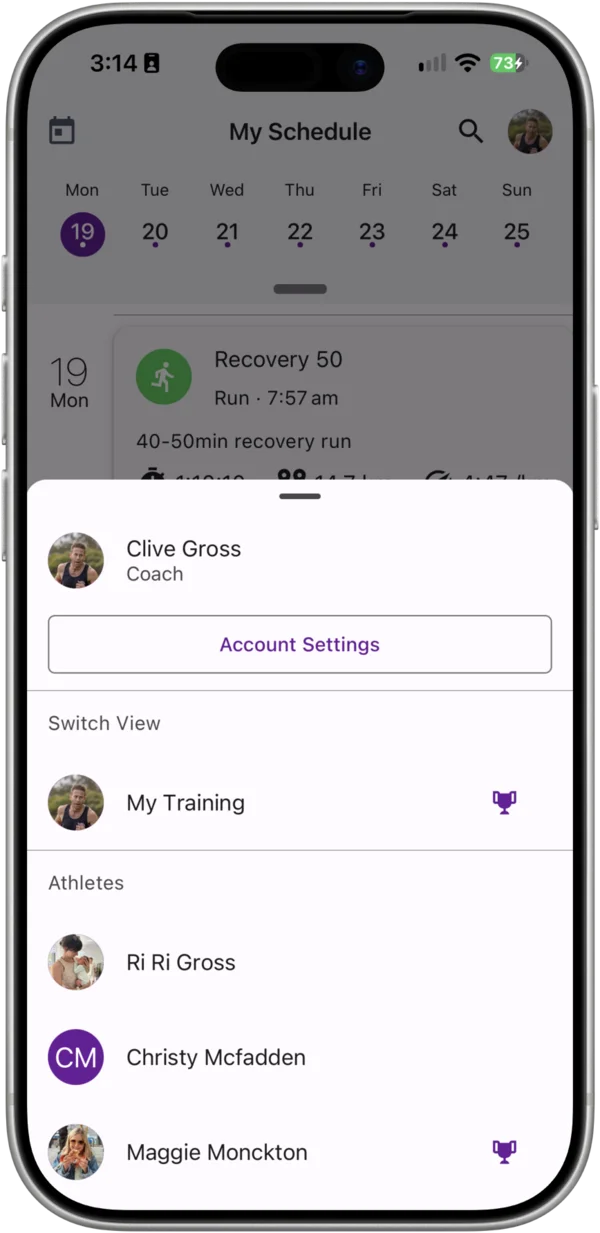
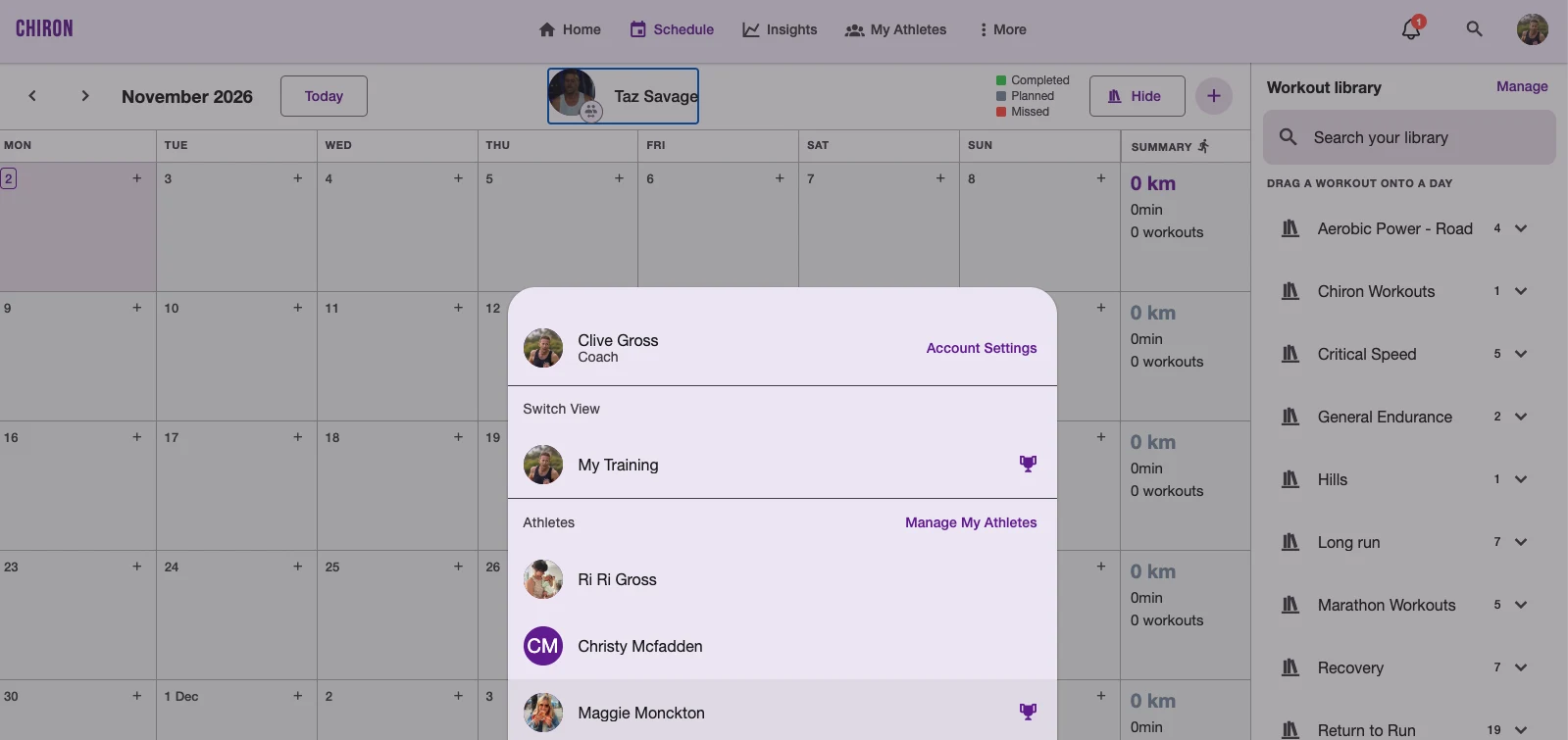
- Open the profile menu (your avatar). On iPhone it opens as a sheet; on the web it opens as a dialog.
- Choose an athlete. My Training switches back to your own schedule.
Athletes with an upcoming event show a trophy icon in the list. Only active athletes are listed.
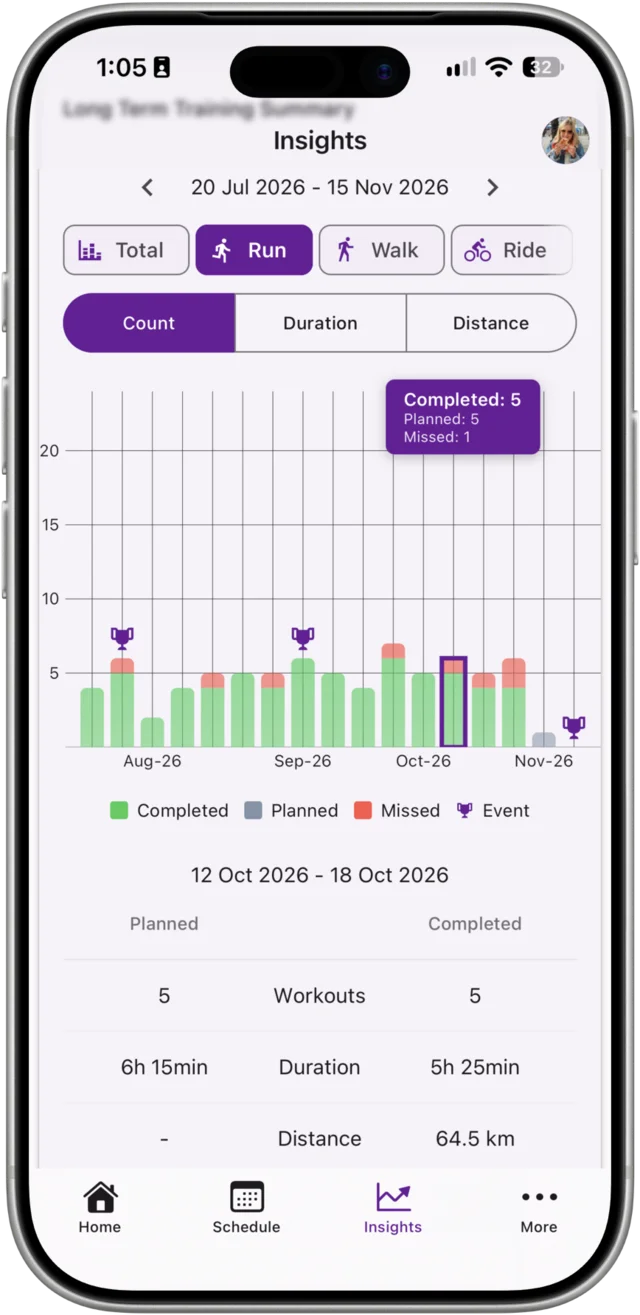
While you’re viewing an athlete, the Schedule and Insights tabs show that athlete’s training.
Plan workouts for an athlete
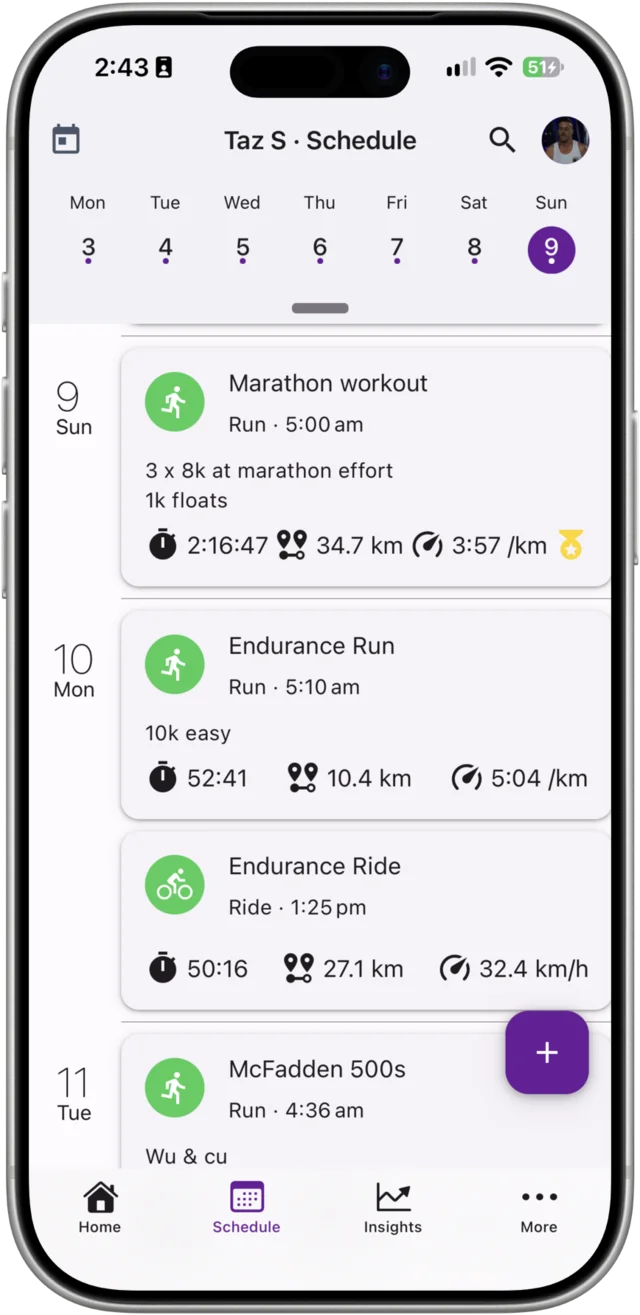
With the athlete selected, add workouts, events and notes exactly as you would for yourself. Tap + on the Schedule tab and choose Workout, Event or Note. See Planning a Workout and Repeating a Workout.
Schedule from your Workout Library
Your Workout Library belongs to you, not your athletes, so you can schedule the same sessions to any athlete.
- iPhone: tap +, choose Workout Library, pick a workout and schedule it once or repeating. See Scheduling Workouts from the Workout Library.
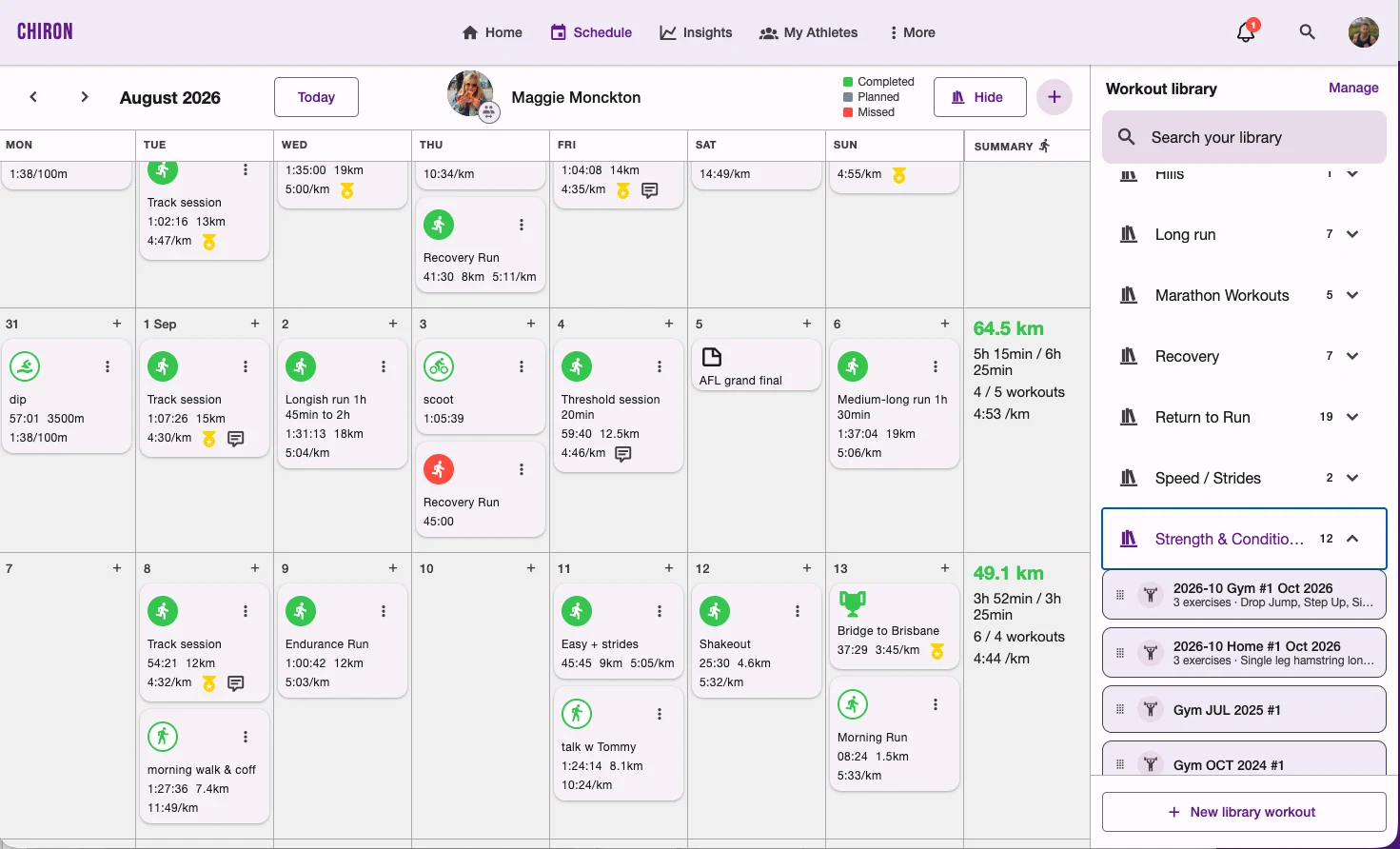
- Desktop web: on a wide screen the Schedule shows your Workout Library beside the calendar. Drag a workout onto a day to schedule it as a planned workout straight away.
Review completed training
Open any of the athlete’s workouts to see what they completed against what was planned. Comment on the workout to give feedback. See Comments on Workouts and Notes.
Some actions stay with the athlete: coaches can’t merge an athlete’s workouts, start or finish their strength workouts, or change the sets they’ve logged. Their Personal Bests are read-only to you.