A workout in Chiron can be planned, completed, or missed. The schedule shows what you planned against what you actually did.
Add a workout to your schedule
- Open the Schedule tab.
- Tap +, then Workout. You can also tap a day on the calendar and choose Workout from the Add to this day menu.
- Choose the activity type, such as run, ride or strength.
- Give the workout a Title, for example 6 x 1km @ threshold.
- Set the Date.
- Add a Description with the detail of the session: warm-up, reps, recoveries, target paces.
- Under Planned, enter the planned duration and, for distance-based sports, the planned distance.
- Tap Save.
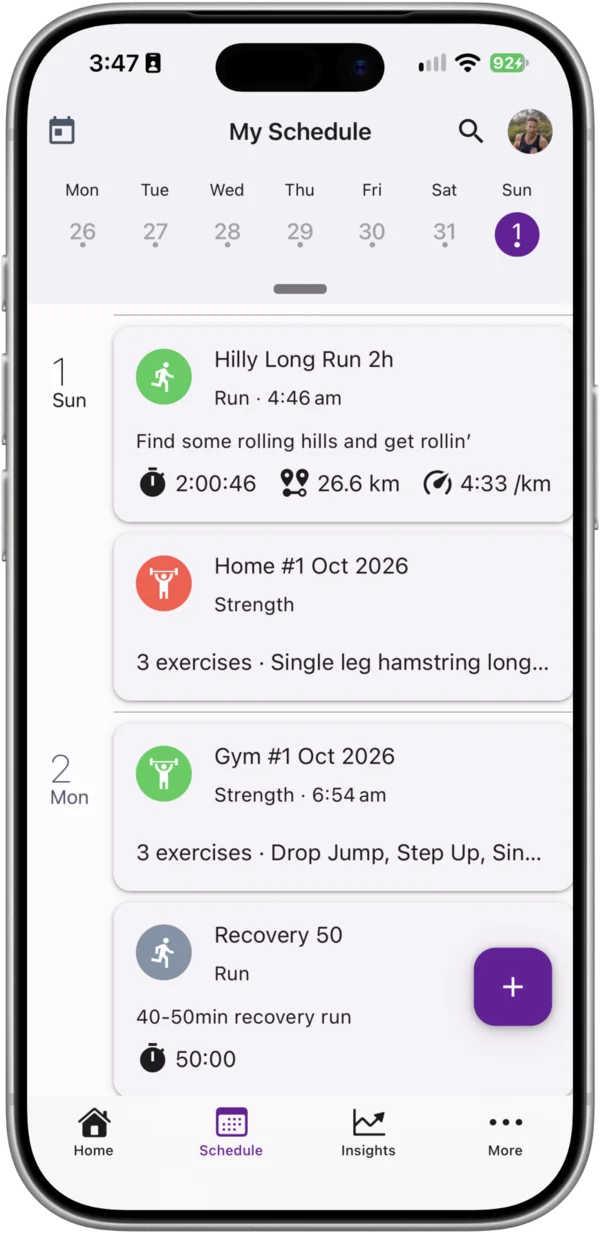
The workout appears on your schedule as a planned workout.
Planning a workout you’ll repeat
To schedule the same workout on several days or weeks, set Recurrence above the date field before you save. See Repeating a Workout.
Planning from your Workout Library
If you run the same sessions regularly, save them to your Workout Library and schedule them in a couple of taps. See Scheduling Workouts from the Workout Library.
To save an existing workout to your library, open it, tap the ⋮ menu and choose Add to Workout Library.
Strength workouts
Strength and physio workouts have their own exercise list with sets, reps and load. See Strength & Conditioning in Chiron.
Editing or deleting a planned workout
Open the workout, tap the ⋮ menu and choose Edit to change any detail. To remove it, choose Delete from the same menu and confirm.
What happens when you do the workout
When you complete the session and it syncs from Strava, Chiron matches it to the planned workout on the same day. See Completing a Workout.